Your property listing pages on your ‘Selling Site‘ are made up of template elements. If you would like to customize how your property listing page looks, arrange what content displays in what order, or add new content sections then keep reading…
How To Customize Your Property Listing Page With Custom HTML Listing Elements
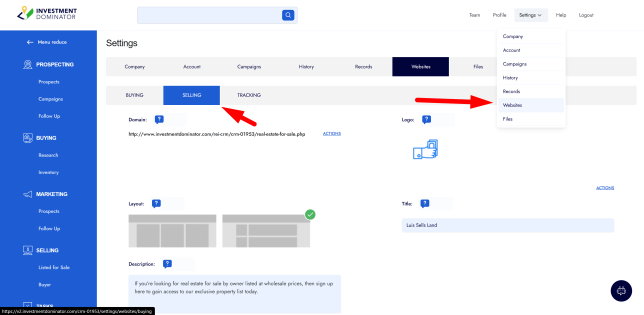
1) Navigate to ‘Settings> Websites> SELLING> Listing Elements‘:
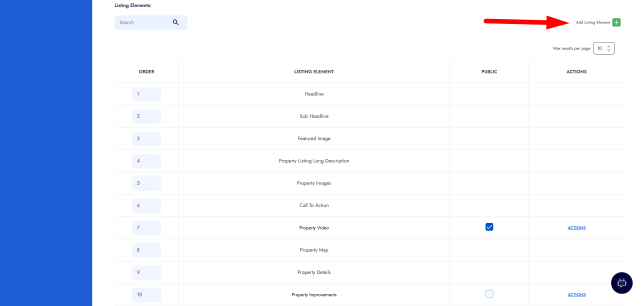
2) Click on the ‘Add Listing Element‘ button:
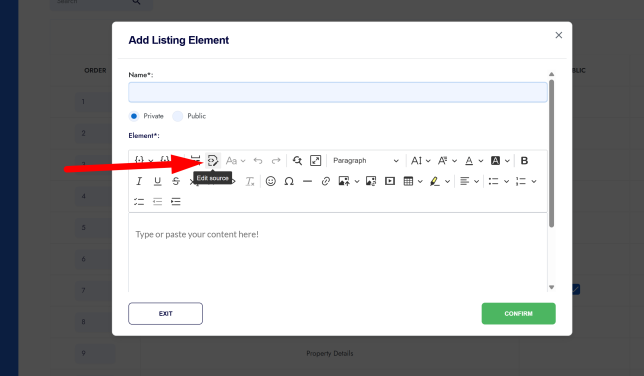
3) Add an appropiate name for this custom Listing Element and be sure to make it ‘Public’ so it displays on your Listings and then either use the HTML Editor to create your custom property listing element or click the ‘Edit Source‘ option to add source code to the block. For example, you could add YouTube embed code or PayPal button code under the ‘Edit Source‘ area.
NOTE: You can use merge fields to dynamically call in data or built-in elements from the system.
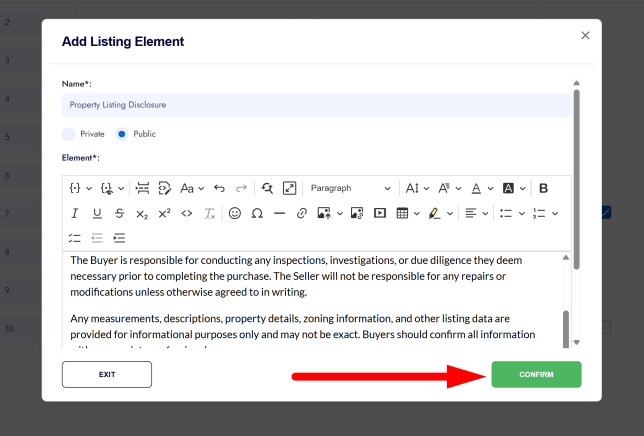
4) Once you have given your new listing element a name and have added your content click the green ‘Confirm’ button to create the element:
5) You can drag the Listing Elements up or down to set the position of your new listing element:
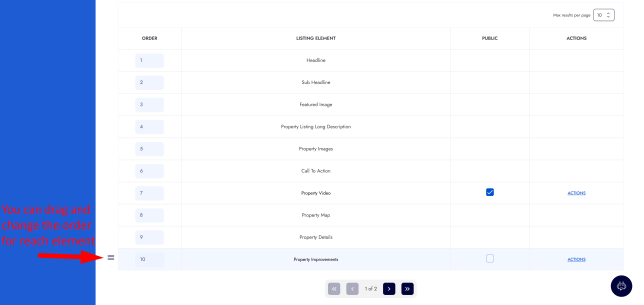
6) Reload one of your property listings on your ‘Selling Site‘ to view the updates to your listing:
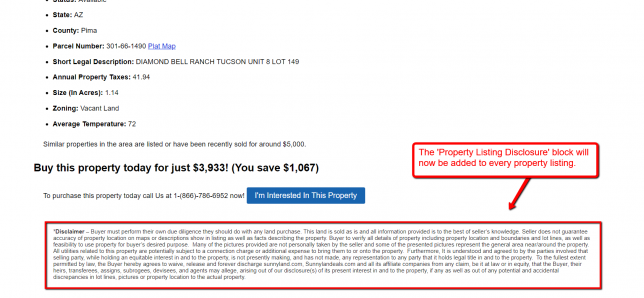
NOTE: Custom elements will display on all your public property listings.
Frequently Asked Questions
What are Property Listing Elements on the Selling Site?
Property Listing Elements control which sections appear on your Selling Site property pages and the order they are displayed. This allows you to customize how information such as descriptions, maps, images, and other listing details are presented to potential buyers.
Where can I customize the Property Listing Elements?
You can manage these settings from your system by navigating to Settings → Websites → Customize Website Settings → Selling Property Listing Elements. From there, you can adjust how the different sections appear on your property listing pages.
Can I change the order of the listing elements?
Yes. The system allows you to rearrange the listing elements so they appear in the order you prefer on the property listing page. This helps you highlight the most important information first for potential buyers.
Will these changes affect all property listings?
Yes. Changes made in the Selling Property Listing Elements settings apply globally to your Selling Site and will affect how all property listings are displayed.
Why should I customize the listing elements?
Customizing the listing elements allows you to control the presentation of your property listings and create a clearer, more organized layout for buyers viewing your properties on your Selling Site.