The Offer/ Option Calculator helps you quickly evaluate a property and set your offer and option amounts based on key financial data like market value and back taxes. It provides suggested values that you can adjust manually to fit your deal strategy.
STEP 1: Open the Property Record
- From the left sidebar, navigate to the ‘PROSPECTING‘ tab.
- Click the property record you want to analyze to open the ‘Edit Property‘ screen.
STEP 2: Launch the Offer Calculator
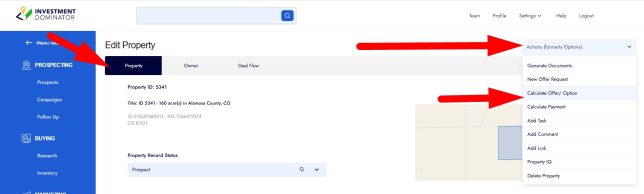
- Ensure you are on the ‘Property‘ tab within the property record.
- Click on the ‘Actions’ dropdown menu at the top right corner of the record.
- Select ‘Calculate/ Offer Option‘ from the dropdown menu:
STEP 3: Review the Calculator Fields
- The calculator will display key financial fields including:
- Market Value
- Loan/ Mortgage or Leins
- Back Taxes
- Max Offer and Min Offer
- Suggested Offer Amount
- Offer Amount (and Net To Seller)
- Suggested Option Amount
- Option Amount (and Net To Seller)
- These values are initially based on the market value stored in the property record or what you enter as a market value at the top of the calculator.
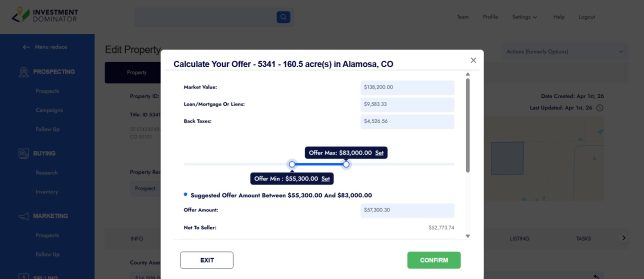
STEP 4: Enter or Adjust Your Numbers
- You can manually update the Market Value, Offer Amount, and Option Amount fields as needed.
- The calculator will dynamically update the suggested values based on your manual entries.
- if you click the ‘Set‘ option the value will transfer to the offer or option amount fields.
STEP 5: Confirm and Save
- Click the ‘CONFIRM‘ button once your values are set.
- Look for the green confirmation message indicating success.
- Your offer details are now ready for use in documents, workflows, and follow-ups.
Frequently Asked Questions
Can I override the suggested offer and option amounts?
Yes, the calculator allows manual entry of all key values so you can customize offers according to your strategy.
Are back taxes included in the offer calculation?
Yes, any back taxes updated in the property’s ‘Liens > Back Taxes‘ field are factored into the net amount calculation for cash offers.
What if I want to generate offers for multiple properties at once?
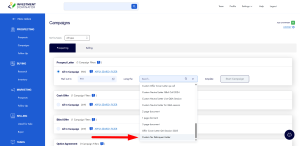
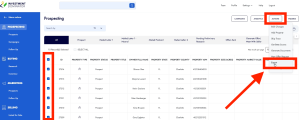
You can prepare your property records with offer amounts using the ‘Bulk Changes‘ action and then use the ‘CAMPAIGNS‘ screen to generate bulk offer documents.
Where do I find the calculator within the Investment Dominator?
It is accessed from each property’s record under the ‘Actions‘ menu by selecting ‘Calculate Offer Option‘.
Do I need to save the calculated amounts manually?
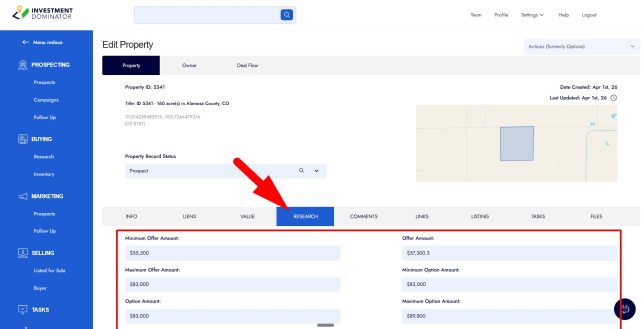
No, after clicking the ‘CONFIRM‘ button the values entered from the Offer/ Option Calculator all get stored in your property record under the ‘RESARCH‘ tab: