There are a couple of ways to add video to your property listing. One way is to simply upload the video to a public video-sharing and hosting platform like YouTube or Vimeo, then copy the share/embed code that they generate for you and paste it under the source tab of the Property Listing> Listing Long Description field. You can do this by, clicking the ‘Edit Source‘ link below the HTML editor for the Listing Long Description field.
Step 1: Upload And Attached A Video To Your Property Record
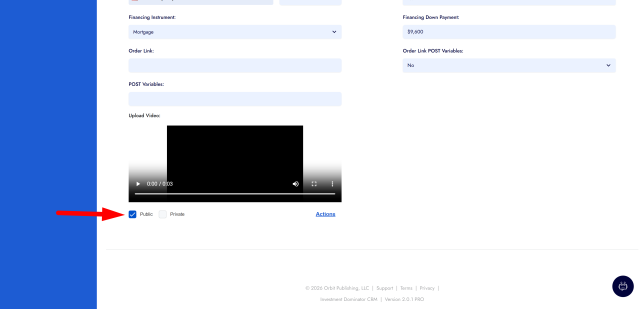
If you do not want to use a platform like YouTube or Vimeo that’s ok too. Investment Dominator has a ‘Upload Video‘ option that you can utilize. To use this feature first upload a video file to your property record under the ‘Listing> Upload Video‘ area for at least one of your properties that you have posted on your Selling Site:
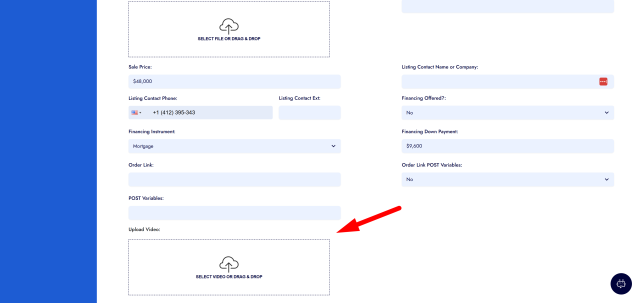
Once the video file has been uploaded make sure the ‘Public‘ permission is checked:
Step 2: Create A New Property Listing Element To Display Your Listing Videos
In step 1 you uploaded and attached a video to your property record but at this point, for most of you using one of our built-in themes, the video will not automatically display yet on your Selling Site property listing. To get the video to display you need to make sure to add a video display element to your listing page. Here’s how to do that:
Navigate to the ‘Settings> Websites> SELLING> Listing Elements‘ section and click the green ‘Add Listing Element‘ button:
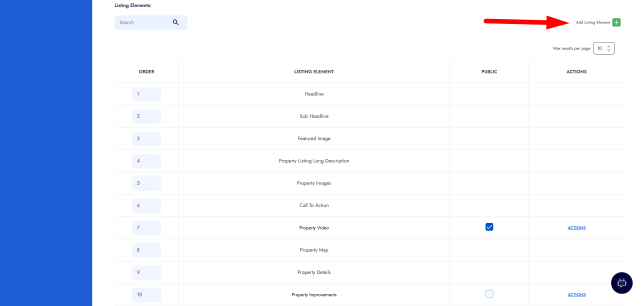
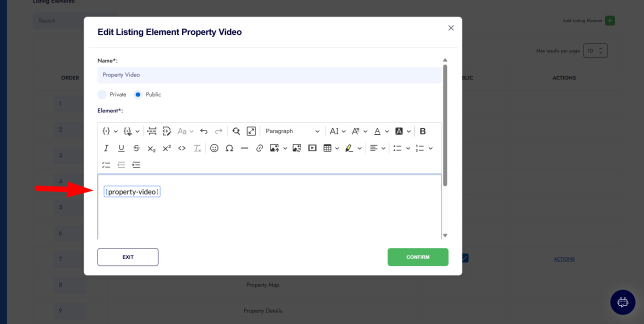
Now add a name for the listing element like “Video” under the ‘Name’ field and set it’s visibility to ‘Public’
You can then simply paste [property-video] merge field tag to the element editor:
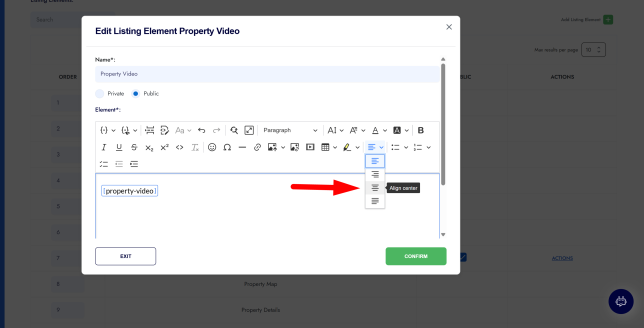
If you would like your videos centered on the listing page, then highlight the [property-video] tag and click the ‘Align Center’ option:
Once you’re done, click the green ‘Confirm’ button.
The new custom element will display at the bottom of the Property Listing Elements table which indicates where the video player will actually display on your listing page. So if you would like to move the position of where the video displays, simply click and drag the options until the element is in your desired display order:
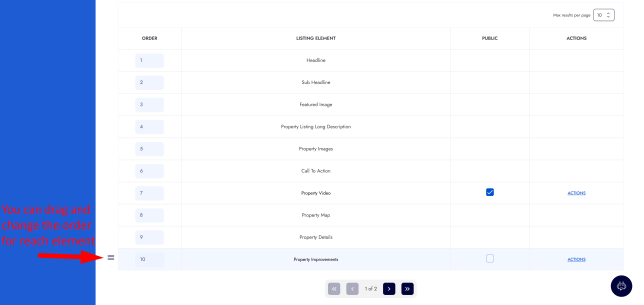
In this example, we set the video element to display right below the Property Listing Long Description.
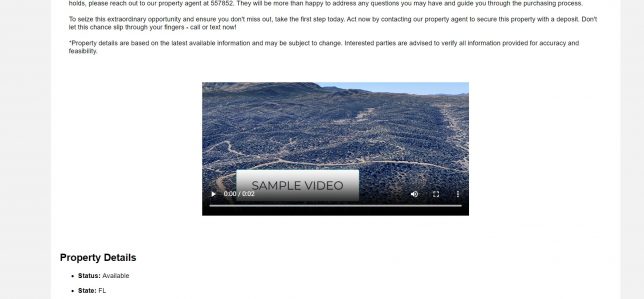
To preview your new updates go to the Listing page and the video should be there.
NOTE: You only need to complete Step 2 of this article once.
Frequently Asked Questions
How do I add a video to a property listing on my Selling Site?
Open the Property Record and navigate to the Listing section. Locate the Listing Video field and paste the video link. Once saved, the video will appear on the property’s listing page on your Selling Site.
What type of video link should I use?
You should use a public video link, typically from a platform such as YouTube or another video hosting service. The link must be accessible so it can display properly on the listing page.
Where will the video appear on the listing page?
After the video link is added to the Listing Video field and the property is publicly listed, the video will automatically appear within the property listing elements on your Selling Site.
Why isn’t my video showing on the listing page?
If the video does not appear, check the following:
- The video link is valid and publicly accessible
- The property listing is set to Public
- The link was saved correctly in the Listing Video field
Can I update or replace the video later?
Yes. You can edit the property at any time, replace the video link in the Listing Video field, and save the changes. The updated video will then appear on the listing page.