We don’t recommend that you change any of our built-in document templates as these have been tested and tweaked over thousands of successful deals. For this reason, we only give you the option to create your own custom documents instead of editing our built-in templates. However, if you would like to test out variations of the letter for yourself, in this article we will discuss how you can create a new Custom Document that uses our content as a base and then add your own customizations to that.
How To Create A Custom Offer Cover Letter Template
- Go to ‘Settings > Campaigns> Add Template’.
- Then select the following settings…
- Document Title = (Give your document a name)
- To = Owner – Land Only
- File Type = Both
- Layout = Portrait
- Document Content = (Copy and paste this content under the ‘Source’ button)
- Allow Generate Envelope/Label = Yes and Large Envelope/Labels
- Allow REIPrintMail = Yes
- Ink Color = Black & White
- Allow Bulk Update = Yes
- Move To = Offer/ Option Sent
- Per Each Property = Yes
- Click the blue ‘+ Add Template’ button to save the Custom Template
We don’t recommend that you change any of our built-in document templates as these have been tested and tweaked over thousands of successful deals. For this reason, we only give you the option to create your own custom documents instead of editing our built-in templates. However, if you would like to test out variations of the letter for yourself, in this article we will discuss how you can create a new Custom Document that uses our content as a base and then add your own customizations to that.
How To Create A Custom Blind Offer Cover Letter Template
- Go to ‘Settings > Campaigns> Add Template’.
- Then select the following settings…
- Document Title = (Give your document a name)
- To = Owner – Land Only
- File Type = Both
- Layout = Portrait
- Document Content = (Copy and paste this content under the ‘Source’ button)
- Allow Generate Envelope/Label = Yes and Large Envelope/Labels
- Allow REIPrintMail = Yes
- Ink Color = Black & White
- Allow Bulk Update = Yes
- Move To = Offer/ Option Sent
- Per Each Property = Yes
- Click the blue ‘+ Add Template’ button to save the Custom Template
How To Create A Custom Offer Template
- Go to ‘Settings > Campaigns> Add Template’.
- Then select the following settings…
- Document Title = (Give your document a name)
- To = Owner – Land Only
- Status = Pending Preliminary Research
- File Type = Both
- Layout = Portrait
- Document Content = (Copy and paste this content under the ‘Source’ tab)
- Allow Generate Envelope/Label = Labels
- Allow Export Data = Yes
- Allow Bulk Update = Yes
- Move To = Offer/ Option Sent
- Per Each Property = Yes
- Click the blue ‘+ Add Template’ button to save the Custom Template
How To Create A Custom Exhibit “A” Template
- Go to ‘Settings > Campaigns> Add Template’.
- Then select the following settings…
- Document Title = (Give your document a name)
- To = Owner – Land Only
- File Type = Both
- Layout = Portrait
- Document Content = (Copy and paste this content under the ‘Source’ tab)
- Allow Generate Envelope/Label = Labels
- Allow Export Data = Yes
- Allow Bulk Update = Yes
- Move To = Offer/ Option Sent
- Per Each Property = Yes
- Click the blue ‘+ Add Template’ button to save the Custom Template
How To Use Your New Custom Templates
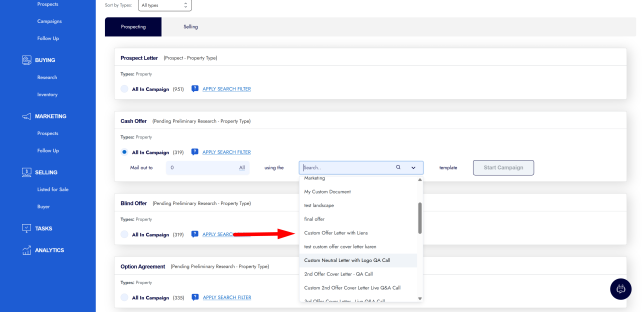
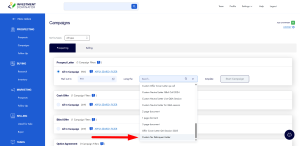
After you have created your custom letter template, you can use it by clicking on ‘Campaigns’ under the ‘Prospecting’ section of the system and in the ‘Cash/Blind Offer section’. You will see an option to use the custom letter template that you created, and it will merge in the information of all contact records in the corresponding status.