
Once property owners have contacted you requesting a cash offer and you’ve completed your preliminary research using the Property IQ wizard, you’re ready to calculate and generate your offers.
In the Investment Dominator you can:
- Generate a single offer from the individual property record using Property Actions, or
- Generate multiple offers in bulk from the Campaigns screen.
Follow the steps below:
STEP 1: Calculate and Save Your Offer Amounts
Before generating any offer documents, you’ll want to calculate and store your offer amounts in the system.
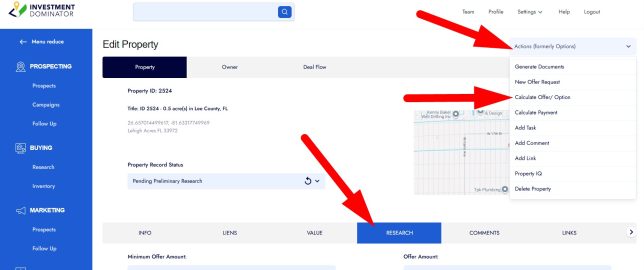
- Open the property record you want to make an offer on.
- The on the ‘Edit Property‘ screen navigate to the ‘RESEARCH‘ tab.
- Click ‘Actions> Calculate Offer/ Options‘ and use the Offer Calculator to help determine your offer amounts:
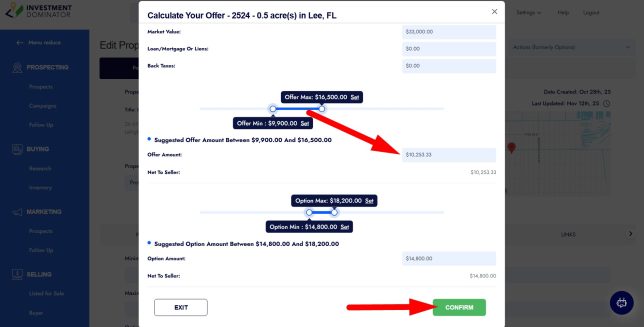
These values will be used when generating your offer documents.
- Enter your numbers into the appropriate fields:
- Offer Amount (required)
- Minimum Offer Amount (recommended)
- Maximum Offer Amount (recommended)
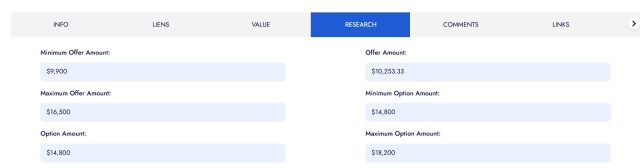
Your offer acceptance and expiration dates are automatically calculated by default based on your global settings. However, if you’d like to set specific dates for certain properties, you can use the following fields to override the defaults:
- Offer Accept By
- Offer Expires On (Close of Escrow)
- Option Accept By
- Option Expires On
If you don’t need to make changes, simply leave these fields blank:

If the property has any back taxes owed, you should update the back tax amount under the ‘LIENS > Back Taxes‘ field before you continue because (for land cash offers) back taxes are factored into the ‘Net To Seller‘ amount in your offer.
STEP 2: Generate a Single Offer from the Property Record
To generate an offer for one specific property:
- Go to the property record you want to work with.
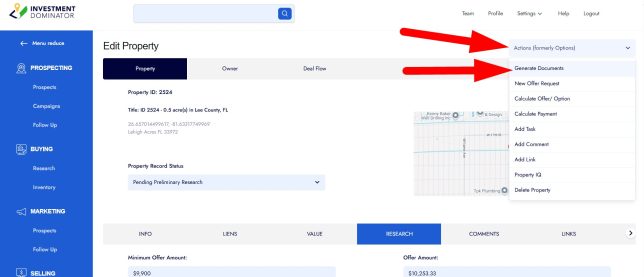
- Click on the ‘Actions‘ menu.
- Select ‘Generate Documents‘:
- In the template search box, search for and select the ‘Offers‘ template:
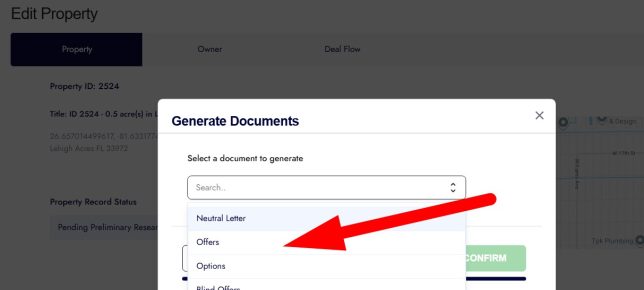
- Click the ‘CONFIRM‘ button to continue.
- Choose how you would like to generate the documents, for example if you would like to generate PDF, Doc file that you can download and print locally select the ‘LOCAL PRINTER (HOME OFFICE)‘ option:
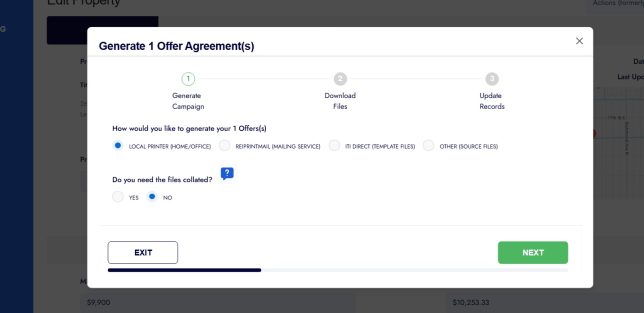
- Click ‘NEXT‘ to generate the offer documents:
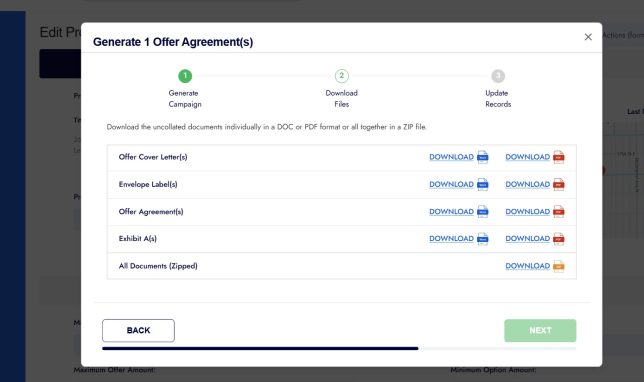
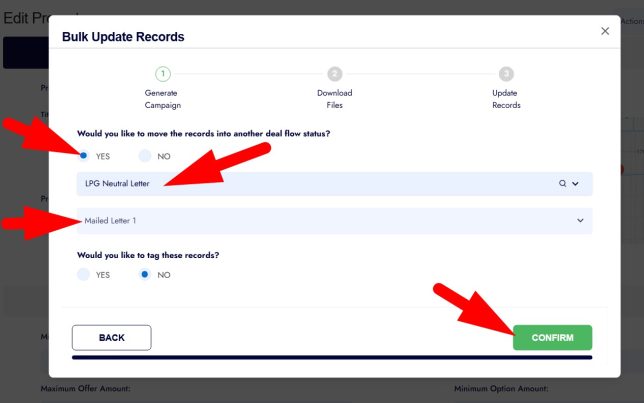
- Once you have downloaded all the files locally, click ‘NEXT‘ then let the system know if you would like to move this record to the next status in the Deal Flow and/or tag the records:
STEP 3: Prepare Multiple Records for Bulk Offers
To generate offers in bulk, first make sure your property records are ready:
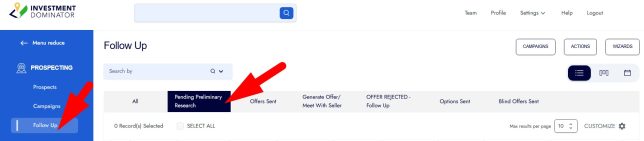
- Ensure all target properties are set to the ‘Pending Preliminary Research‘ status so that you can pull them up under the ‘PROSPECTING> Follow Up> Pending Preliminary Research‘ tab:
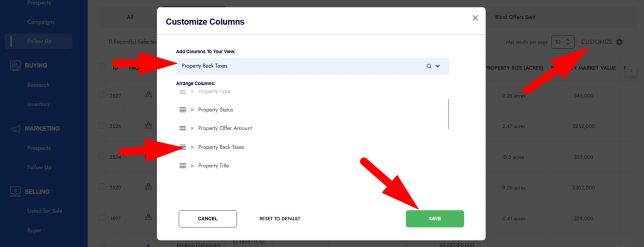
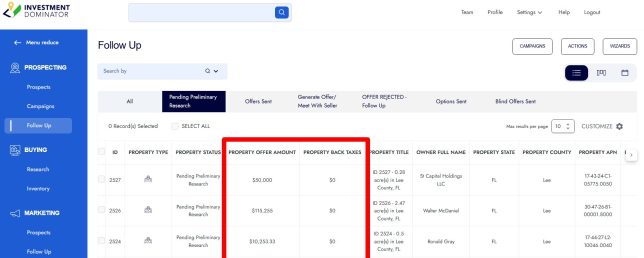
- Customize your view so that you have the ‘Property Offer Amount‘ and ‘Property Back Taxes‘ columns added to your table view and verify that at least the offer amounts and back taxes are filled out where applicable:
NOTE: To update Offer Amounts or Back Tax amounts (and other fields) for multiple records at once, use the Bulk Changes option.
STEP 4: Start a Cash Offer Campaign
Once your records are prepared, you can generate multiple offers using the ‘Campaigns‘ screen:
- Click on ‘CAMPAIGNS‘ from the top-right of the screen:

- Scroll down to the ‘Cash Offer‘ section:

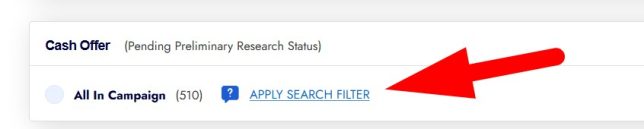
- Choose who you want to mail offers to:
- Select ‘All In Campaign‘ to generate offers for all properties in ‘Pending Preliminary Research‘, or
- Apply or create a ‘Search Filter‘ to target a smaller subset, then select that filter from the dropdown:
STEP 5: Configure Your Campaign Settings
- Under ‘Mail out to‘, enter the number of offers you want to generate.
- Under ‘using the‘, search for and select the ‘Offers‘ template.
- Click the ‘Start Campaign‘ button:

STEP 6: Generate and Confirm Your Offer Documents
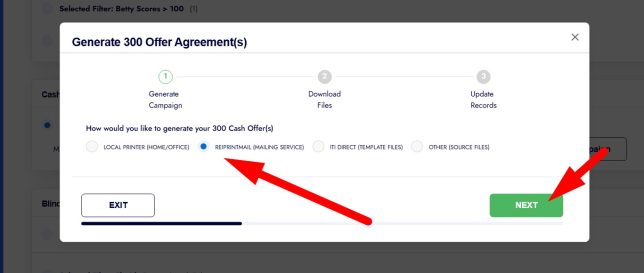
- Select how you want to generate the campaign documents (based on your preferred output).
- Click ‘NEXT‘ to move through each step of the campaign wizard:
- Review the campaign settings and generated records on each screen.
- On the final screen, click ‘CONFIRM‘ to complete the campaign and generate your offer documents.
Your offers are now ready to print, mail, or process according to your Deal Flow.