Creating custom user roles in Investment Dominator 2.0 allows you to define specific permissions for team members based on their responsibilities. This guide walks you through the process of creating a custom role with tailored access settings and assigning it to users.
STEP 1: Navigate to Roles Section
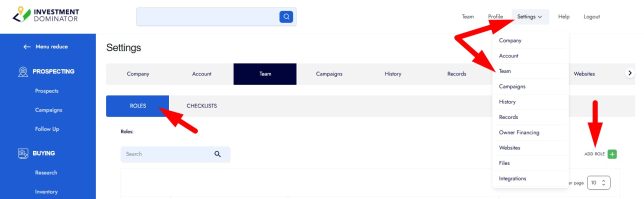
- From the CRM dashboard, click on ‘Settings‘ in the top menu.
- In the Settings dropdown, select ‘Team‘ to open team management options.
- Click the ‘ROLES‘ tab to view existing roles and manage permissions.
- Click the ‘+ADD ROLE‘ button to begin creating a new custom role:
STEP 2: Define the Role Name and Access Permissions
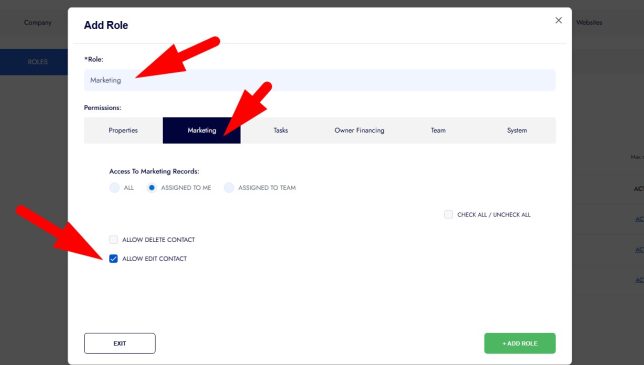
- Enter a descriptive name for the role, for example, “Marketing”.
- Under Access to Land Property Records and House Property Records, select the appropriate permission level you would like this team to have access to.
- Configure specific permissions by checking options such as ALLOW EDIT PROPERTY, ALLOW GENERATE LETTER, and ALLOW DELETE ATTACHMENT.
- Navigate through other tabs like Marketing, Tasks, Owner Financing, and set permissions pertinent to each category (e.g., ALLOW EDIT CONTACT, ALLOW DELETE TASKS).
STEP 3: Save the Custom Role
- Once all desired permissions are set, click the ‘+ ADD ROLE‘ button to save your new custom user role.
- A confirmation message will appear indicating the role has been added successfully.
STEP 4: Assign the Custom Role to a User
- Navagate to the ‘Team‘ area from the main menu
- Select the user you want to assign the new role to by clicking their name.
- Under the ‘Role’ dropdown and select the newly created custom role (e.g., “Marketing”):
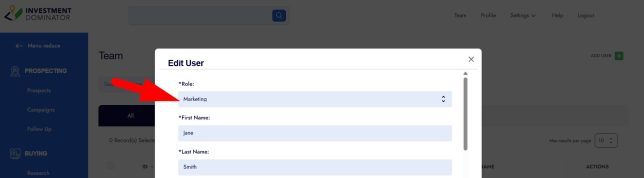
- Click CONFIRM to save changes.
- A success message will confirm the user’s role has been updated.
Frequently Asked Questions
Can I modify a custom user role after creating it?
Yes, you can return to the Roles section to edit permissions or rename the role as needed.
What permissions can I set when creating a custom role?
You can configure access to property records, marketing features, tasks management, owner financing, team settings, and system-level permissions.
Will users automatically receive notification when assigned a new role?
No automatic notification email is sent upon role assignment. However, users can log in and see their updated permissions immediately.
Can multiple users share the same custom role?
Yes, custom roles can be assigned to multiple users to standardize their access and permissions in the system.
What if I don’t assign a custom role to a user?
The user will have the one of the two default role permissions (Admin or Rep) assigned to them, which may limit their access and capabilities within the system.