Neighbor letters are a powerful way to reach nearby property owners after importing neighbor records into Investment Dominator. This guide walks you through how to select neighbor prospects, generate letters, and properly update their status for tracking.
Before You Begin
Make sure that:
- Neighbor records have already been imported into your account
- The records appear under Marketing and show:
- Type: Neighbor
- Status: Prospect
STEP 1: Navigate to Neighbor Prospects
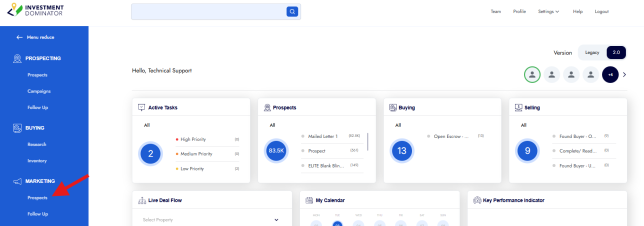
- Open Investment Dominator
- Go to Marketing in the left-hand menu
- Locate the neighbor records you imported
- You should see Type = Neighbor and Status = Prospect
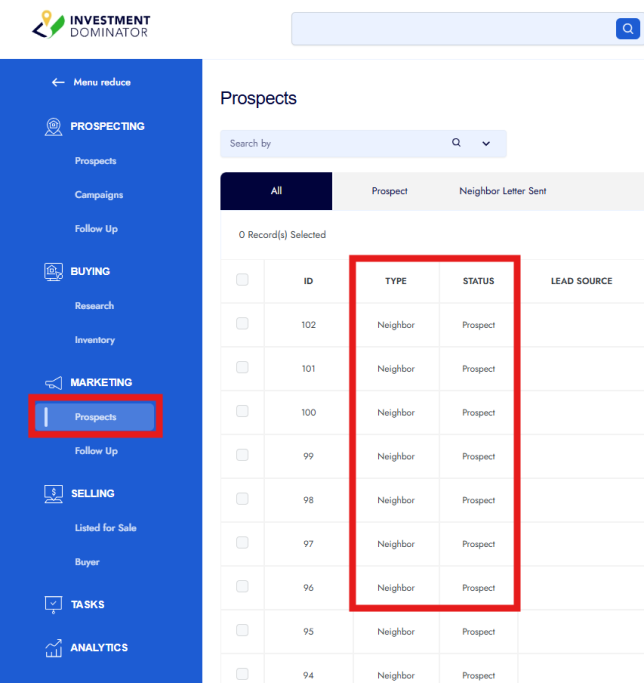
These are the records you’ll use to send neighbor letters.
STEP 2: Select Records to Mail
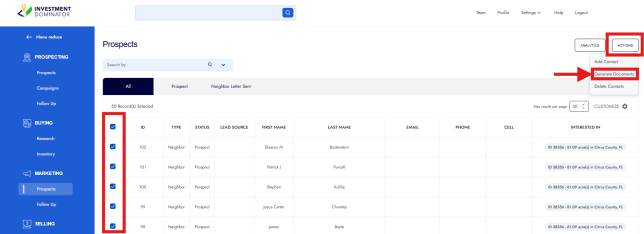
- Select the records you would like to send. Then, from the ‘Actions’ menu, select ‘Generate Documents’
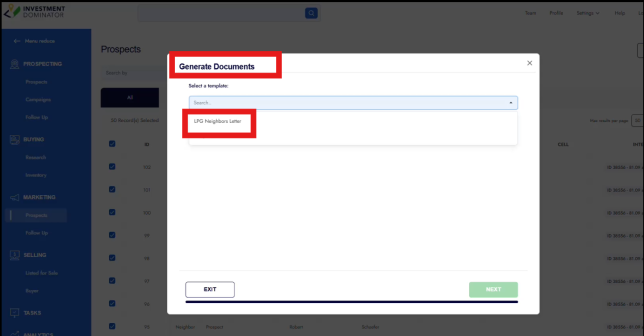
From the ‘Generate Documents’ menu, choose LPG Neighbors Letter
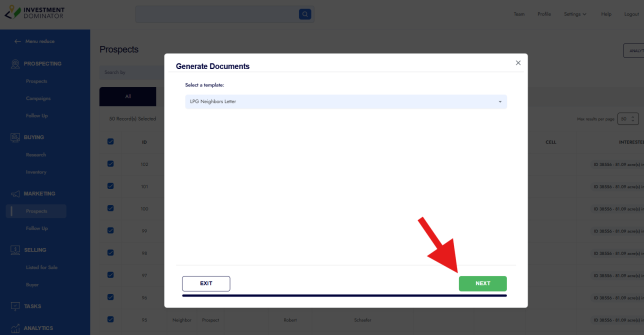
Click ‘Next’ and choose how you would like to generate your Neighbor Letters
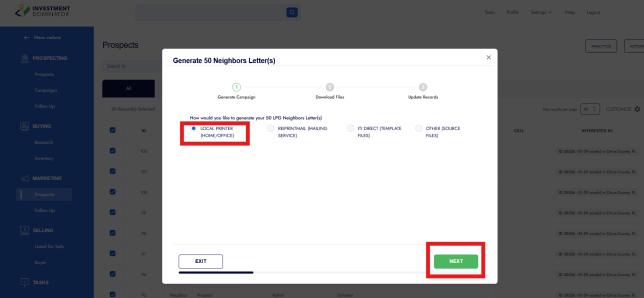
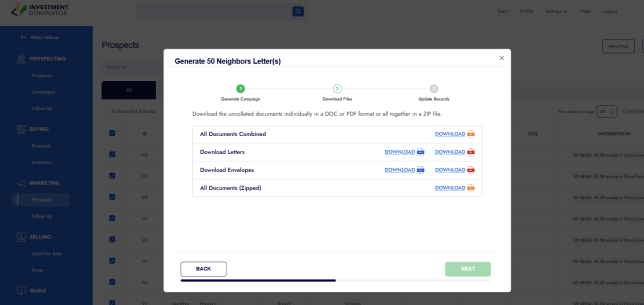
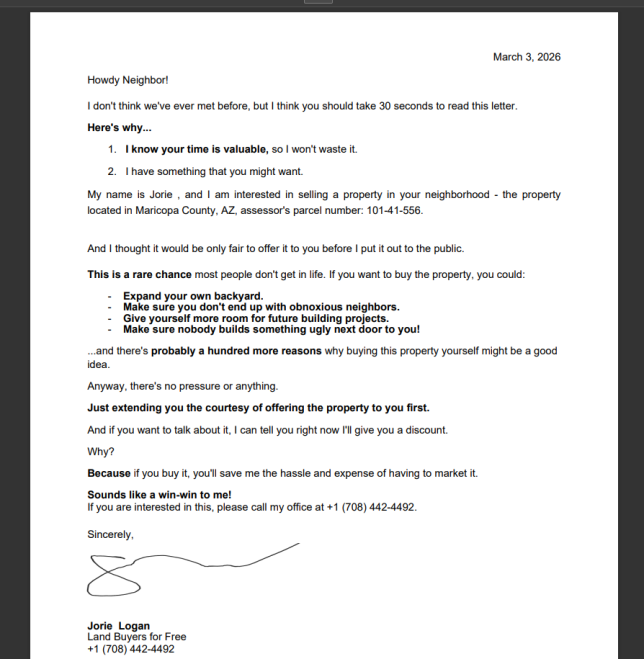
STEP 3: Generate the Neighbor Letter
Download and review your letters if you are using the Local/Home Print option.
STEP 4: Update Status After Mailing
After downloading and preparing the letters:
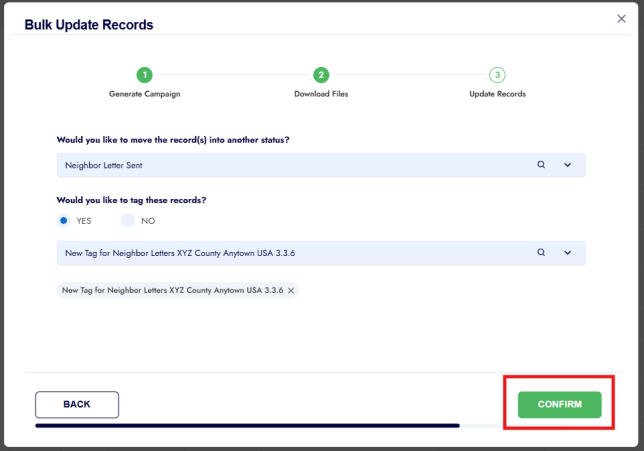
- Click Next
- Choose a new status such as Neighbor Letter Sent
- Confirm the status change
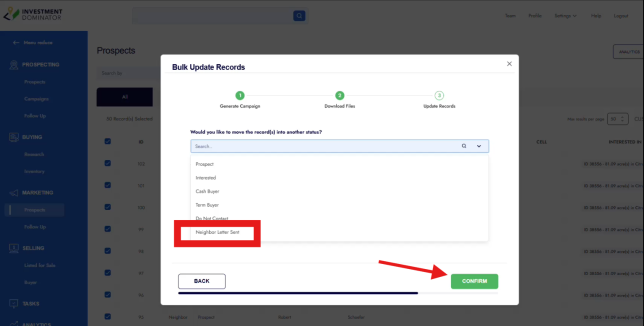
This keeps your pipeline accurate and prevents duplicate mailings.
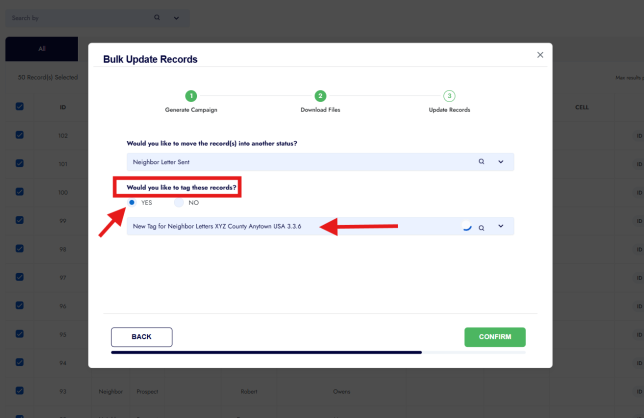
STEP 5: Tag the Records (Recommended)
- When prompted, choose to add a tag, type in or choose the tag name and click ‘Confirm’
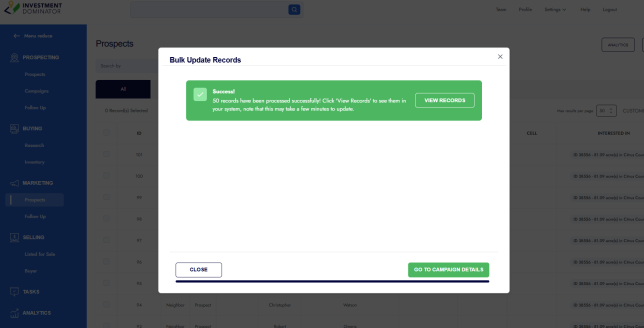
You’ll now have a clear record of:
- Which neighbors were mailed
- When the letters were sent
You’re All Set! If you have any questions or need assistance, please reach out to Support or join the weekly LIVE Q&A.