The ‘CUSTOMIZE‘ column view feature allows you to customize which fields (columns) you see when viewing records in Prospecting, Marketing, or Selling in ‘List View’. This helps you tailor the records list to show the exact information you need, in the order that makes the most sense for your workflow.
How to Customize Columns (Step by Step)
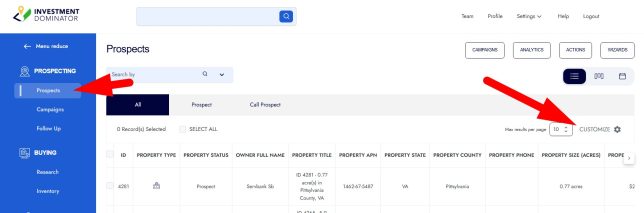
STEP 1: Go to the Records Section under List View
- From the left-hand menu, navigate to a ‘PROSPECTING‘, ‘MARKETING‘, or ‘SELLING‘ section.
- For this example, select ‘Prospects‘
NOTE: Ensure that you are in list view:

STEP 2: Customize Your Columns
- Click the ‘CUSTOMIZE’ option to the top right of the record list:
STEP 3: Add New Columns
- Enter in the name of the field/column you want to add (for example, Offer Amount).
- Click to select the field from the list:
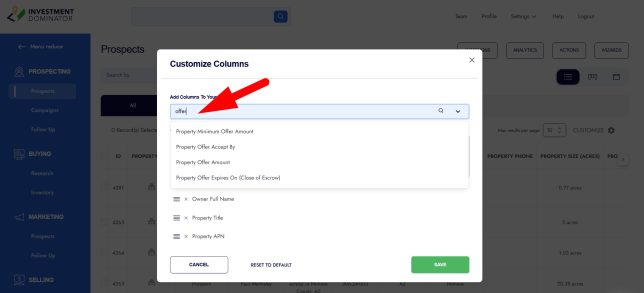
- The selected column will be added to the end of the list by default.
STEP 4: Reorder Columns
If you would like to rearrange your column order then:
- Click and drag-and-drop columns and move them up or down in the list to rearrange them.
- For example:
- Keep ID and Property Type first (these are always fixed)
- Move Status to the third position
- Place Property State next, if needed
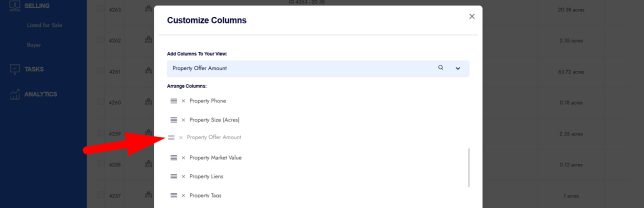
- Once you’re happy with the column selection and order, click ‘SAVE‘ option.
- Your customized view will immediately apply to the records list.
Important Notes
- Column customization is record type specific (e.g. PROSPECTING, and MARKETING views can have different columns and column order).
- Your saved column layout persists in your browser until you change it again.
- This feature only affects how you see records—it does not change the underlying data.
Frequently Asked Questions (FAQ)
Can I customize columns differently for PROSPECTING, and MARKETING?
Yes, each section that has differnet types of records has its own independent column layout, so you can customize them differently based on your workflow.
Are there columns that cannot be moved or removed?
Yes, some system columns, such as ID and Property Type, are fixed and will always appear first.
Will my column changes affect other users on my account?
No, column views are user and browser specific and do not impact other users, these view settings are stored on the browser level so even if you use mutiple computers or browser the views can be unique per browser.
Why don’t I see the field I’m searching for?
Only available fields can be added to the column view. If a field doesn’t appear in the search, it may not be supported for table display yet.
Do I need to redo my column setup every time I log in?
No, once saved, your column layout will remain in place until you change it again or until you clear your browser cache.
Does changing columns modify the actual record data?
No, this feature only controls how data is displayed, not the data itself.