
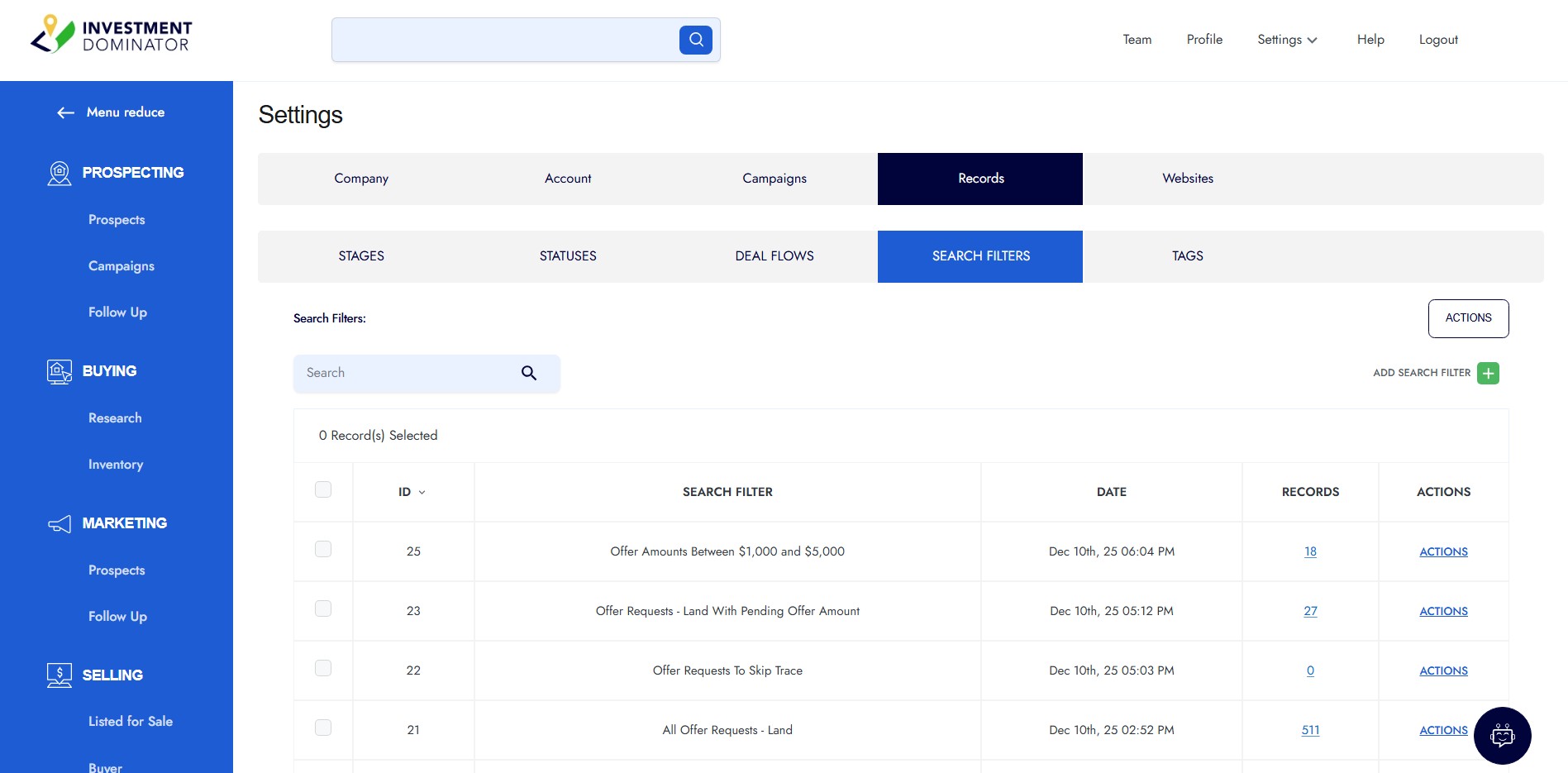
Search Filters allow you to define list segmentation within your system based on selected fields and conditions. Using ‘AND‘ and ‘OR‘ rules, you can get very precise about which records you want to work with.
Here are a few ways you might use Search Filters:
- Filter for high-quality properties with a BETTY Score greater than 100 so you can send offers to your strongest opportunities first.
- Target out-of-state or out-of-county owners who may be more motivated to sell.
- Segment offer campaigns by offer amount ranges (for example: $1K–$5K, $5K–$25K, etc.) so you can generate and mail offers in organized batches.
The steps below show how to set up an example filter that finds properties with a specific Property Status and an Offer Amount between $1,000 and $5,000.
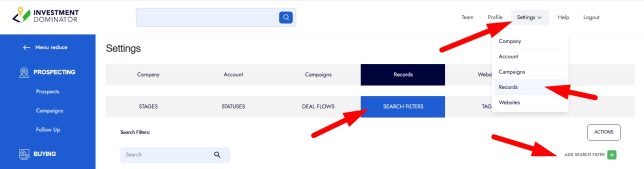
Step 1: From the top menu, hover over or click ‘Settings‘, then select the ‘Records‘ option. Click the ‘SEARCH FILTERS‘ tab, then the ‘ADD SEARCH FILTER‘ button in the upper-right corner:
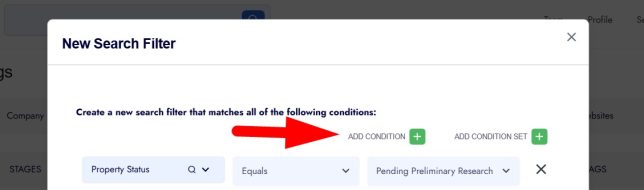
Step 2: Add your first condition based on the ‘Property Status‘ field:
Click ADD CONDITION, then configure:
- Field: Property Status
- Operator: Equals
- Value: Pending Preliminary Research
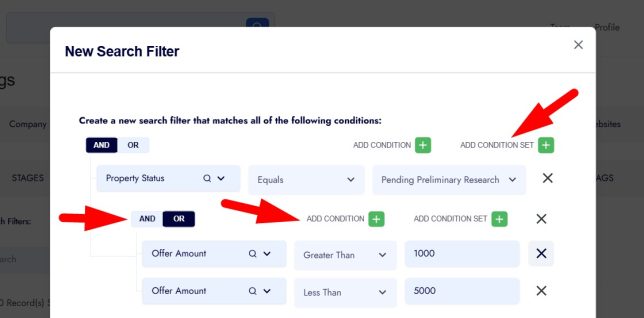
Step 3: Click ‘ADD CONDITION SET‘ to create a new condition set, then inside the new set add the following two condition rules:
Condition 1:
- Offer Amount
- Greater Than
- 1000
Condition 2:
- Offer Amount
- Less Than
- 5000
Make sure the Condition Set uses the ‘OR’ option in this case:
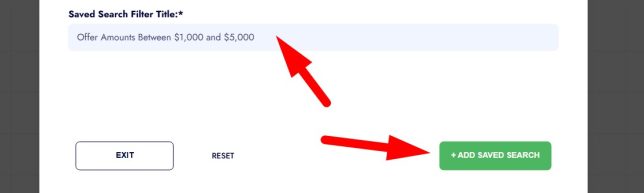
Step 4: Enter a descriptive name for your Search Filter (for example: ‘Offer Amounts Between $1,000 and $5,000‘). Then to save this search filter click the ‘+ADD SAVED SEARCH’ button:
How To Apply a Search Filter to a Campaign
One common way to use a search filter is when you are generating a direct mail campaign. Here’s how:
- From the left-side navigation menu, click ‘PROSPECTING‘ then the ‘CAMPAIGNS‘ button located at the top-right of the page and go to the Campaigns screen:

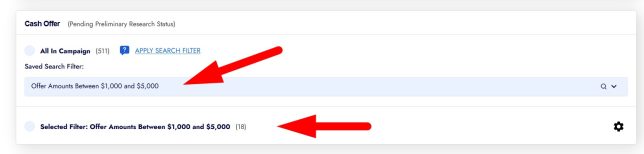
- Next to the campaign you want to segment, click ‘APPLY SEARCH FILTER‘:

- Search for and select your ‘Search Filter‘ in the popup bar by name. This adds the filter to the campaign so you can generate it only for that specific subgroup of recipients:
FAQ’s
What is a Condition Set and why would I use one?
A ‘Condition Set’ groups multiple rules together so they act as one unit. For example, filtering for offer amounts between $1,000 and $5,000 requires two rules (greater than 1000 OR less than 5000), which must be grouped together.
Can I create multiple offer-based Search Filters?
Yes. Many users create search filters for different offer tiers (For example offer batches between $1K–$5K, $5K–$25K, $25K+) to organize offer campaigns into batches.
How do you load a list of prospects by search filter?
You can either navigate to ‘Settings> Records> SEARCH FILTERS’ and click the record count from the ‘RECORDS’ column, or you can navigate to ‘ANALYTICS> Custom Reports’ and use the search bar to find your filter by name and click on the count of records to load them.