
You can create custom documents such as neutral letters, offer letters, or any personalized templates for your mailings. Follow these steps to build or reuse your own templates.
Step 1: Access the Custom Documents Section
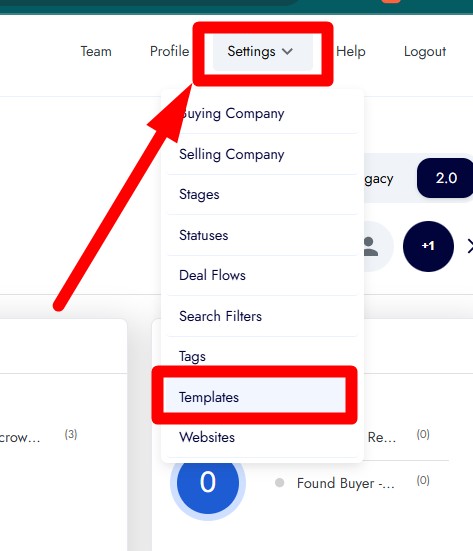
- From your Investment Dominator account, go to the Settings menu.
- Select Templates.
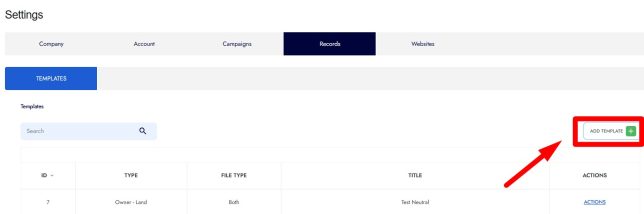
- You’ll see a list of existing templates you’ve created.
Step 2: Add a New Template
- Click on the Add button (green “+ Add Template”).
- Enter a Title for your reference (for example: “Test Neutral Letter”).
- Under Applies To, choose Land.
- Select the Orientation (Portrait or Landscape).
Step 3: Add Content
- In the content box, you can paste an existing letter or newsletter you’ve used before.
- You can copy the content from your Legacy version or other templates.
- If you want to use our built-in templates, check this Neutral Letter Template for examples you can copy and paste directly into this section.
NOTE: Use the “Edit Source” icon to paste this content.
- Once your content is ready, review the formatting.
Step 4: Configure Optional Settings
- Allow Generate Envelope Label:
- Choose Yes to enable labels.
- Select the envelope size (Standard or Large).
- Allow Bulk Copy:
- Choose Yes if you plan to generate this letter for multiple records at once.
- Set Status Update:
- Use this option to automatically update the record’s status after the letter is generated.
- Example: Set it to “Option Sent” if this letter is used for that step.
- Allow Export Data:
- Choose Yes if you want to export record data related to this document.
- Per Each Property:
- Set to Yes if you want the system to generate a separate letter for each property.
Step 5: Save Your Template
- Once all settings are configured, click OK or Save Template.
- Your new custom document will appear in the list of templates and will be ready for use in future campaigns.
Tip:
You don’t need to rebuild your templates from scratch. Simply reuse or copy text from your previous letters and paste it here, the system will handle the rest.