
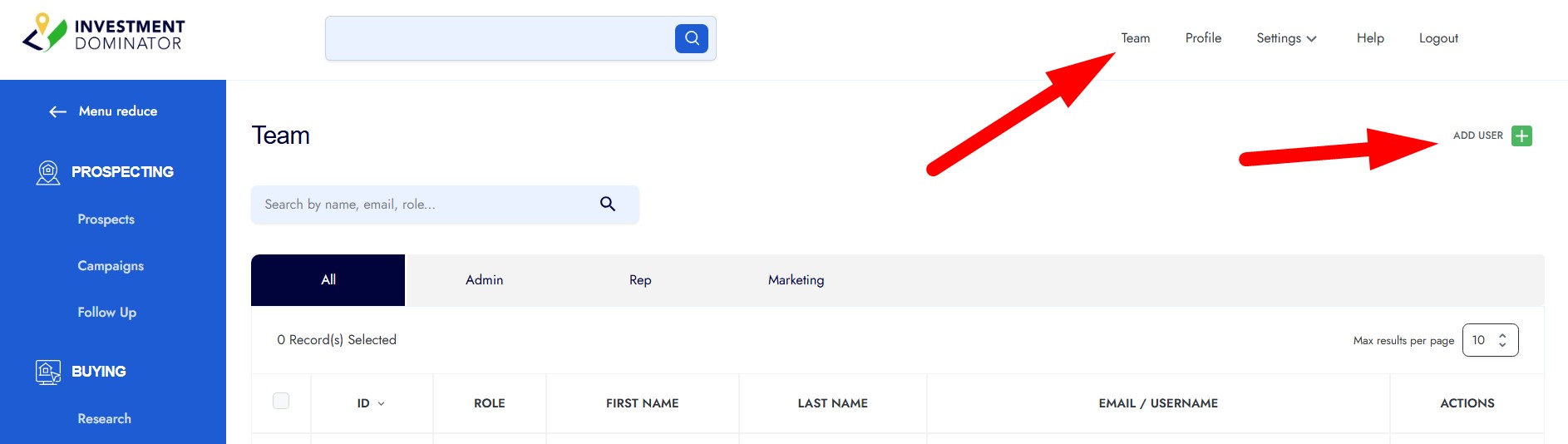
You can add team members, virtual assistants, or partners to your account by following these simple steps:
Step 1: Go To The Team Section
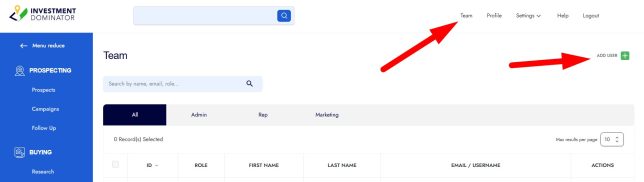
- From the top-right corner of your homepage, click on ‘Team‘.
- This will take you to the page where you can manage all team members.
Step 2: Add a New User
- Click on the ‘ADD USER‘ option located to the top right of the secreen:
Step 3: Fill in User Information
- Role: Choose either Admin, Rep (Representative), or select a custom permission role.
- First Name and Last Name
- Email/Username
- Password (create a login password for them intially)
- Phone Number/ Ext. or other contact info (optional).
- Profile Picture (optional).
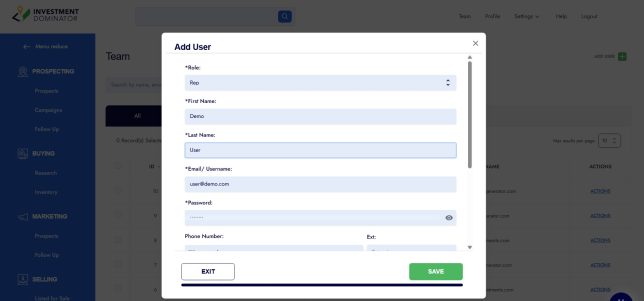
Step 4: Save the User
- Click ‘SAVE‘ to confirm.
- You’ll see a confirmation message that the user was added successfully.
Step 5: User Invitation
- The new user will automatically receive an invitation email.
- The email includes the login URL and their credentials so they can access the system.
That’s it—your new team member is now set up and ready to log in.