
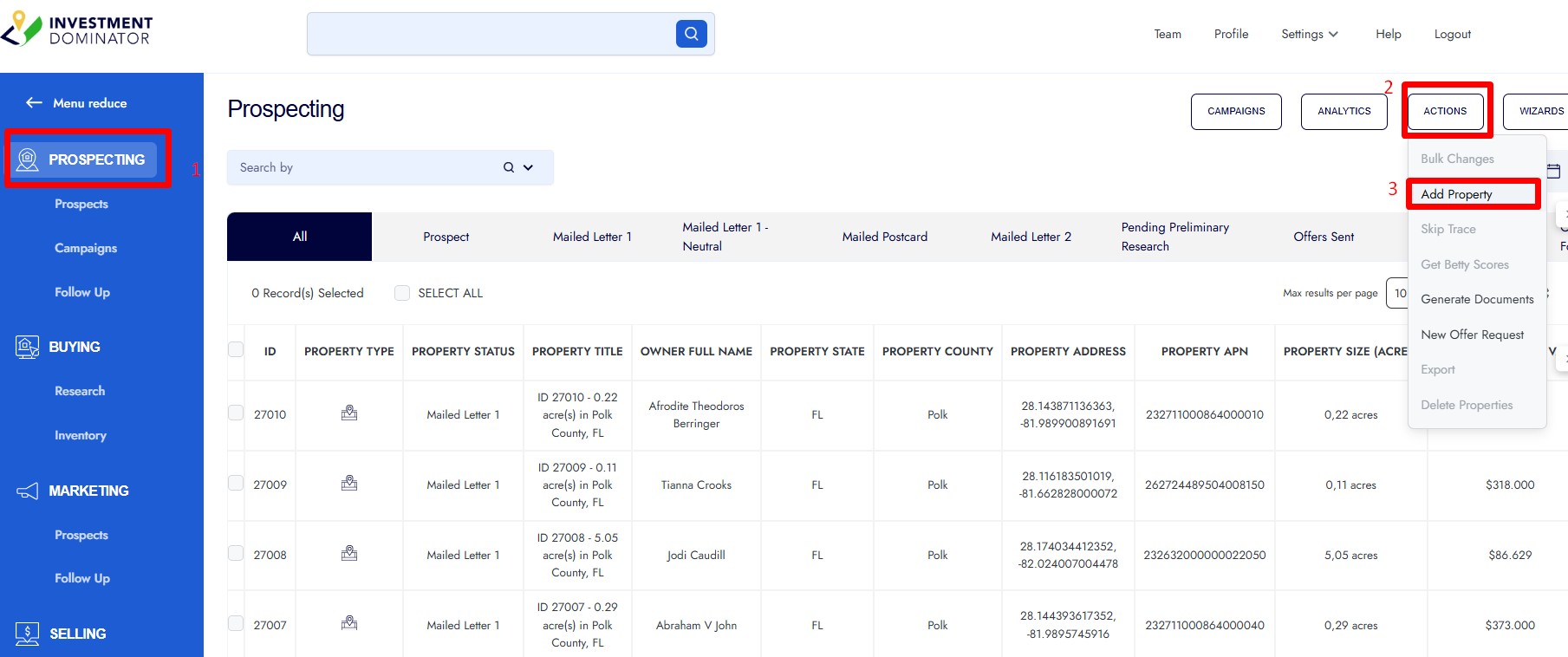
Follow these steps to add a new property and owner record manually.
1. Open the Add Property Menu
• Go to any main section, such as Prospecting.
• Click Actions.
• Select Add Property.
2. Choose or Create an Owner
You will be asked whether the property is owned by an existing owner.
• If the owner already exists in your system, enter their Owner ID.
• If this is a new owner, click Create New Owner, then click Next.
3. Enter Owner Information
Fill in the owner details:
• Company name (optional)
• First and last name
• Email (optional)
• Phone number
• Mailing address
Click Next when done.
4. Enter Property Information
Complete the property details:
• Select Property Type (Land or Home)
• Add a Property Title (optional)
• Select State → County
• Enter City and Zip Code
• Enter APN (Parcel Number)
• Enter Property Address (if available)
• Enter Property Size; the system will convert it to acres automatically
5. Assign Deal Flow and Status
Choose how this property enters your workflow:
• Select Deal Flow (example: Neutral Letter or Blind Offer)
• Select the initial Status (example: Prospect)
Click Confirm.
6. View and Edit the Property
• Click the link to view the new property record.
• The system will display both the Property ID and Owner ID.
• To edit any field, click on it, update the information, and click off the field to save.