This guide explains how to connect your Investment Dominator CRM with Equinox Voice’s AcreAgent AI Phone Bot so your inbound seller calls are automatically captured and logged inside your CRM. With this integration enabled, AcreAgent answers your offer request line, collects seller and property details, and updates your Investment Dominator property records in real time –eliminating manual data entry and preventing missed opportunities.
- AcreAgent answers inbound land seller calls 24/7
- Captures seller contact information
- Collects property details (APN, county, state, acreage, etc.)
- Logs call notes and outcomes
- Records entire phone interaction with full transcripts
- Scores each lead 1-5 based on motivation and completeness
- Automatically creates or updates records inside Investment Dominator
This allows you to focus on reviewing deals instead of answering routine intake calls.
Before You Begin
Make sure you have:
- An active AcreAgent account with Equinox Voice. If you don’t yet have an account, sign up here.
- An active Investment Dominator CRM account (PRO or higher plan). If you don’t yet have an active account, sign up here.
STEP 1: Create a AcreAgent User In Your Investment Dominator CRM
- Log in to your Investment Dominator Admin Console.
- Navigate to the ‘Team‘ tab.
- Click the ‘ADD USER‘ option.
- Fill out the ‘Add User‘ form with the following:
- Role: Rep
- First Name: Acre (or whatever you want to name your AI receptionist)
- Last Name: Agent (or whatever you want to name your AI receptionist)
- Email / Username: A dedicated email address for your AI receptionist
- Create a password for your AI receptionist
- Click ‘SAVE‘ to add the new user to your team.
AcreAgent will serve as your automated seller intake assistant. Take note of the username and password you create for this user –you’ll need them in the next step.
STEP 2: Set Up Your AcreAgent Account
- Sign up for AcreAgent through Equinox Solutions.
- After signing up, you’ll go through a 4-step onboarding process:
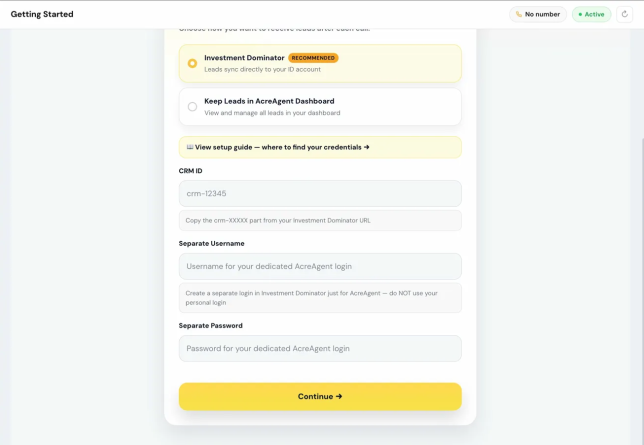
- STEP 2A: CRM Setup
- Select Investment Dominator (marked as RECOMMENDED).
- Enter your CRM ID –this is the crm-00000 part from your Investment Dominator URL.
- Enter the Separate Username and Separate Password for the dedicated AcreAgent user you created in Step 1. Do NOT use your personal login.
- Click Continue. AcreAgent will validate your credentials before proceeding.
- STEP 2A: CRM Setup
NOTE: There’s also a “View setup guide” link on this screen if you need help finding your credentials.
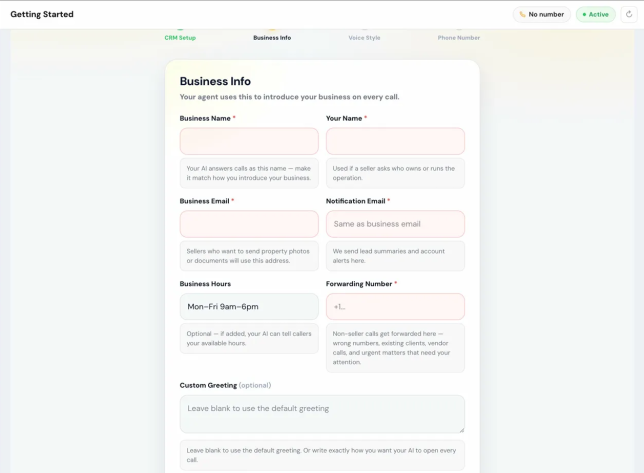
- STEP 2B – Business Info
- Enter your Business Name –your AI answers calls as this name.
- Enter Your Name –used if a seller asks who owns or runs the operation.
- Enter your Business Email –sellers who want to send property photos or documents will use this address.
- Enter your Notification Email –where AcreAgent sends lead summaries and account alerts. Defaults to your business email if left blank.
- Enter your Business Hours (optional) –if added, your AI can tell callers your available hours.
- Enter your Forwarding Number –non-seller calls get forwarded here (wrong numbers, existing clients, vendor calls, urgent matters).
- Optionally write a Custom Greeting –this is exactly how your AI will open every call. Leave blank to use the professional default.
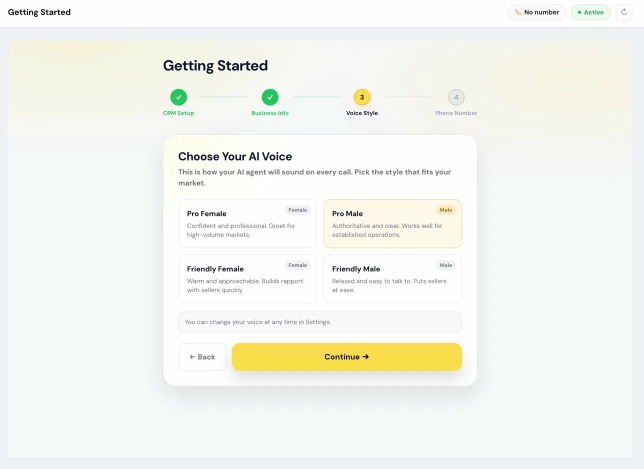
- STEP 2C – Voice Style
Choose how your AI agent sounds on calls. Four options:- Pro Female –Confident and professional. Great for high-volume markets.
- Pro Male –Authoritative and clear. Works well for established operations.
- Friendly Female –Warm and approachable. Builds rapport with sellers quickly.
- Friendly Male –Relaxed and easy to talk to. Puts sellers at ease.
You can change your voice at any time in Settings.
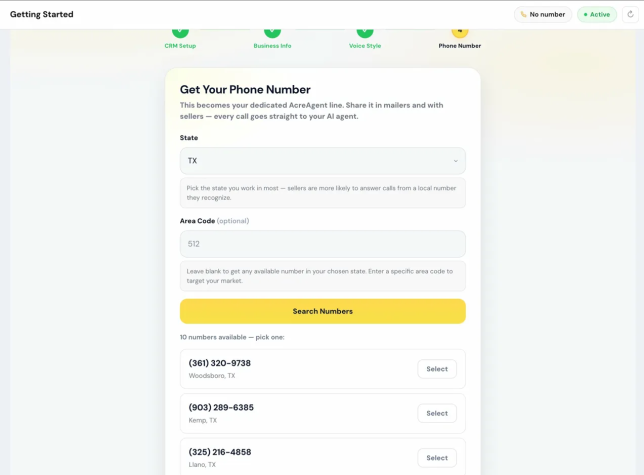
- STEP 2D – Phone Number
- Select the State where you work most –sellers are more likely to answer calls from a local number they recognize.
- Optionally enter a specific Area Code to target your market. Leave blank to see all available numbers in your state.
- Click Search Numbers, then click Select next to the number you want. It’s provisioned instantly.
This is the number you put on your mailers, letters, and marketing. Every call to this number goes straight to your AI agent.
After selecting your number, you’re live. Give the number a call to test it out.
- If you call using a property that’s already in your CRM, AcreAgent can match it to the existing record and update it.
- If AcreAgent does not find a matching record in your CRM, it will notify you by email and put the lead under the Temporary / Flagged Leads section of the dashboard for you to review. Once you’ve verified the correct information, click the Send to your CRM button to push the record over.
For more information about Equinox Voice’s AcreAgent, please visit equinoxvoice.com.
How It Works in Your Business
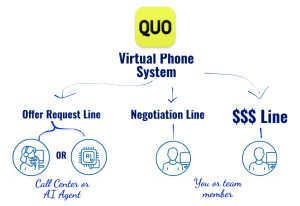
- A seller calls your buying line (phone number provided by AcreAgent).
- AcreAgent answers immediately.
- The AI collects key intake details through natural conversation.
- Each lead is scored 1-5 based on motivation and data completeness.
- Data syncs automatically into your CRM after the call is complete.
- If AcreAgent is not able to find a matching record in your CRM, it will mark the call for review so you can link it to the proper record or create a new one.
- You follow up when ready with complete information already logged.
This ensures:
- No missed calls
- No handwritten notes
- No lost seller information
- Faster follow-up times
Troubleshooting
If records are not appearing in the Investment Dominator CRM:
- Verify your CRM ID is entered correctly (the crm-000000 from your Investment Dominator URL).
- Confirm the username and password match the dedicated AcreAgent user you created –not your personal login.
- Check that the AcreAgent user has Rep-level access or higher in Investment Dominator.
- If your Investment Dominator password was recently changed, update it in your AcreAgent Settings. AcreAgent checks the connection every 6 hours and will email you if a connection issue is detected.
- Contact AcreAgent support at support@equinoxvoice.com if authentication continues to fail.