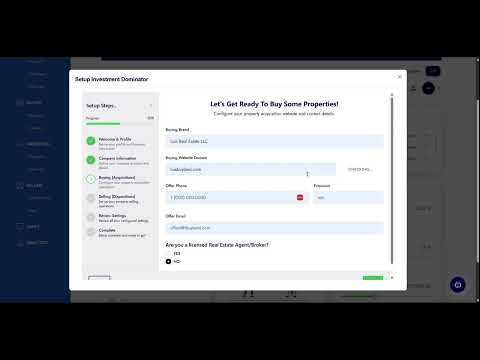
Welcome to the Investment Dominator all-in-one real estate investment CRM system, we’re excited to have you aboard! Please take a few minutes to watch this video where we walk you through our onboarding wizard so you can launch your investment business quickly.
If you get stuck at any point just reach out to our friendly support team and we can help you through the onboarding process or jump on our weekly group training call here.
This guide walks you through using the Onboarding Wizard (sometimes called “Setup”) in Investment Dominator 2.0. You will learn how to access the wizard, configure your personal profile, set up your buying and selling business sides, and register your domains and contact details—so you’re ready to send your first mailing.
STEP 1. Accessing the Setup/ Onboarding Wizard
- Log into Investment Dominator 2.0.
- From the dashboard, click the “SETUP” button at the top-right:

- If you are elsewhere in the system, click the Investment Dominator logo in the top-left to return to the Welcome screen, then click “Setup”.
- The Setup/ Onboarding Wizard launches and guides you step by step.
STEP 2. Profile Setup – Personal Information
- Enter your first name and last name. This will appear on mailed letters.
- Optionally upload a profile picture.
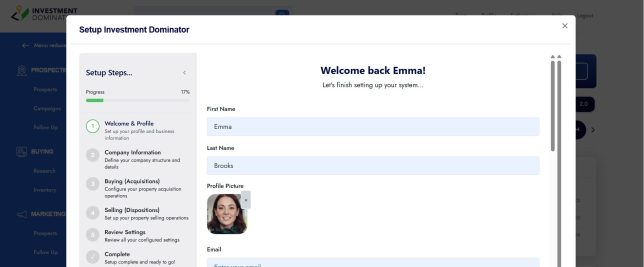
- Confirm your email and phone number. (These are not publicly visible; the email is your login credential and need not be changed here.)
- Choose your time zone to align system timestamps with your region.
Digital Signature
- You can type your name and select a font for your signature image, draw your signature using a device, or upload an existing signature image:
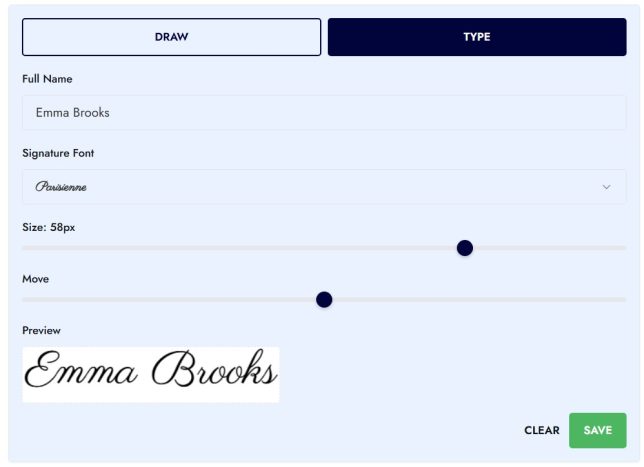
- This signature image will appear on outbound mailings (neutral letters, etc.).
STEP 3. Company & Business Insight – Company Information
This section sets what will appear publicly—on your websites and mailers.
- Enter your Company Name (if you have one) or operate as an individual.
- Provide your company phone number (preferably a business line or virtual phone number—not your home number).
- Optional: Provide a fax number if you use one.
- Provide your company email address: ideally a business email distinct from your login address.
- Enter your address: use an office address or virtual mailbox to protect your personal residence.
- Confirm your company time zone.
Licensed Agent / Broker Disclosure
- If you are a licensed real estate agent or broker, select Yes and provide your disclosure text:
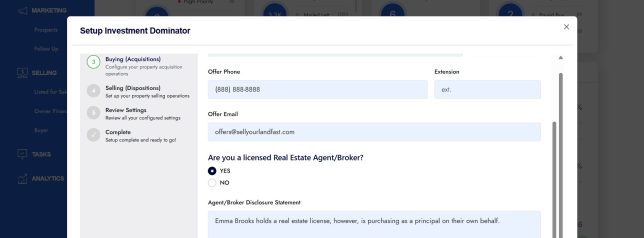
- Otherwise, select No—note that some states (e.g., Georgia) may require specific disclaimers before mailing solicitation letters.
STEP 4. Buying (Acquisition) Side Configuration
- Enter your Buying Brand / Company Name.
- Register a domain for your Buying Site. The system lets you search for availability and purchase it via the wizard.
- Enter an Offer Phone Number: a dedicated line where sellers call when you make them an offer.
- Provide an Offer Email Address (may be same as company email or different).
- Confirm whether you operate as a licensed agent/broker (if applicable).
STEP 5. Selling (Dispositions) Side Configuration
- Enter your Selling Brand / Company Name (often same as Buying Brand).
- Register a domain for your Selling Site.
- Provide a Sales Line / Cash Line phone number: this is the number buyers call about marketed properties.
- Provide a Sales Email Address (can be same business email or separate).
STEP 6. Final Review & Completion
- Review all entered information carefully for accuracy.
- If edits are needed, use the “Edit” link next to any section.
- Once everything is correct, click “COMPLETE SETUP”:
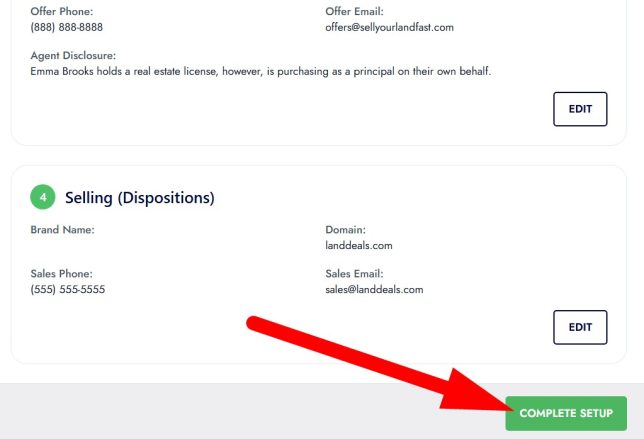
- After completion, you will be directed to the “What’s Next” training: how to download records, send letters, perform preliminary research, and conduct offers.
STEP 7. What to Do Next?
After setup, it’s time to start investing! These articles will help guide you in the right direction…
- Generate A Targeted Prospect List To Find Deals
- Send Letters and Engage With Sellers
- Conduct Preliminary Research To Determine Market Value
- Make Offers
- Do Your Detailed Due Diligence
- Market Your Deal and Get Paid!
Frequently Asked Questions (FAQ’s)
1) What is the Onboarding Wizard in Investment Dominator?
The Onboarding Wizard (also called ‘Setup’) is a guided tool that helps you configure your personal profile, company details, buying and selling websites, domains, and contact information so you can begin marketing and sending mail immediately.
2) How do I access the Onboarding Wizard?
Log into Investment Dominator > click Setup in the top-right corner of the dashboard.
3) Do I have to upload a profile picture?
No. Uploading a profile image is optional and used only for internal reference—it does not appear on websites or mailers.
4) What is the purpose of the digital signature?
Your digital signature appears on your outbound mailings (such as neutral letters). You may type it, draw it, or upload your signature as a picture.
5) What company information becomes public?
Your Company Name, Company Phone, Company Email, Company Address, and any provided agent/broker disclosure may appear on your buying site, selling site, and mailed letters.
6) Do I need a separate business phone number?
It’s recommended. Using a virtual business line helps keep your personal number private and makes your branding more professional.
7) What address should I enter for my company?
Use a business address, PO Box, or virtual mailbox. The address may appear on mailers and websites—avoid using your home address.
8) What if I am a licensed real estate agent or broker?
Select ‘Yes’ in the disclosure section and enter your required disclosure text.
Some U.S. states require additional disclaimers before mailing offers or solicitations.
9) Do I need different domains for my Buying and Selling sites?
Yes, the Buying and Selling websites each use their own domain.
You can search and register domains directly inside the wizard.
10) What is an Offer Phone Number?
This is the number sellers use to contact you after receiving an offer or letter.
It should ideally be a dedicated line separate from your Offer Request or Selling line.
11) What is the Selling or Cash Line?
This is the phone number buyers call when interested in purchasing a property from your Selling Site. It can be distinct from your offer line.
12) Can I use the same email address for both buying and selling?
Yes, but many users prefer separate inboxes for easier organization.
13) How do I update my Phone number on my Website or Letters?
Phone numbers shown on your Websites and Letters are automatically pulled from your Company Phone, Offer Phone, and Selling Site Phone settings inside Investment Dominator. When you update any of the following:
- Company Phone
- Offer Phone
- Selling Site Phone
Those changes will automatically:
Update the phone numbers used in Letters and marketing materials
Update the phone numbers displayed on your Buying and Selling websites
14) What if I make a mistake during setup?
You can edit any section before completing setup.
If you miss something afterward, you can always update your details later via the system settings.
Need Help?
If you encounter any difficulties or have questions during the setup process, our team is here to help. Just reach out to us here or schedule a one-on-one onboarding screenshare session and we’ll make sure you’re set up correctly.