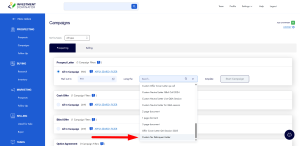
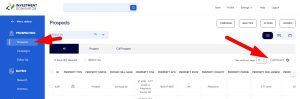
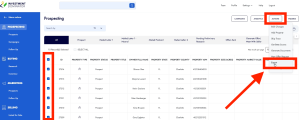
A search filter, also called an advanced filter, is a saved set of criteria you use to organize records and run campaigns. These filters help you quickly find and work with specific groups of records.
Step 1: Open Search Filters
• In the top right, hover over Settings
• Click Records
• Select the Search Filters tab

Step 2: Locate the Filter
• You’ll see a list of all saved search filters in your account
• Find the filter you want to delete
Step 3: Delete the Filter
• Click Actions at the end of the filter’s row
• Select Delete
• A warning message will appear
• Click Confirm Delete

Step 4: Confirm Removal
• The system will process the request
• You’ll see a confirmation message when it’s complete
• Click Close
• The filter is now removed from your account
Frequently Asked Questions
What happens when I delete a search filter?
Only the saved filter is removed. Your records and data are not affected.
Can I recover a deleted search filter?
No. Once deleted, a search filter cannot be restored. You would need to recreate it.
Does deleting a filter affect active campaigns?
No. Campaigns already created will not be changed.
Can I delete filters I didn’t create?
You can delete any search filter that exists in your account.
Why don’t I see the filter I want to delete?
Make sure you’re in Settings → Records → Search Filters and not viewing filters from a records list.