The Investment Dominator API is the official developer interface for integrating custom applications, automations, and third-party tools with the Investment Dominator platform. Whether you’re looking for more information on the Investment Dominator API, exploring how to build an Investment Dominator app, or seeking technical details to extend your existing workflows, this guide provides everything you need to get started. Inside, you’ll find comprehensive documentation on authentication, available endpoints, request parameters, response structures, and best practices for securely accessing and managing Investment Dominator data at scale.
Getting Started
Developer (Sandbox) Account
To request a developer sandbox account please follow the instructions here:
Developer Docs
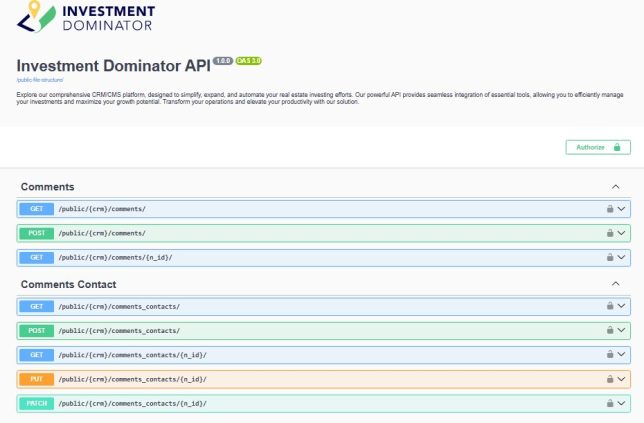
You can access our official public API docs at https://api.investmentdominator.com/docs
Postman Collection
You can access our Investment Dominator Postman Collection here.
Authentication
Generate a Bearer Token
Use the ‘Login’ endpoint to generate a valid bearer token.
| Method | Endpoint | Summary | Description |
| POST | /public/{crm}/login | Authenticate user | Authenticates a user and returns an access bearer token required to authorize subsequent API requests. |
| POST | /public/{crm}/login/refresh | Refresh access token | Issues a new access bearer token using a valid refresh token, allowing continued authenticated access without requiring the user to log in again. |
When making a request to an endpoint that uses a bearer token, include the following headers in your request:
--header 'Accept: application/json'
--header 'Authorization: Bearer YOUR_ACCESS_TOKEN'
Generate an API Key
You can register a new a API Key from the Admin Console under ‘Settings> Integrations> API Keys> Add Key‘.
When making a request to an endpoint that uses an API Key, include the following headers in your request:
--header 'Accept: application/json'
--header 'Public-Key: YOUR_API_KEY'
Common Use Cases
| Use Case | Authentication Method |
| Server-to-server integration | API Key |
| User-based actions | Bearer Token |
| Admin / user impersonation | Bearer Token |
| Long-running integrations | API Key |
Keep your keys secure!
If you think your API Key has been compromised, you can revoke your key at any time from the Admin Console under ‘Settings> Integrations> API Keys‘, generate a new one and then update your application with the new keys.
URL Structure
Endpoint URLs are structured in the following manner https://api.investmentdominator.com/public/crm-{crm_id}/{endpoint}/
Endpoints
Properties & Ownership
| Method | Endpoint | Summary | Description |
| GET / POST | /public/{crm}/properties/ | Manage properties | Create and retrieve property records representing parcels tracked in the system. Learn more about adding properties here: |
| GET / PUT / DELETE | /public/{crm}/properties/{p_id}/ | Property details | View, update, or delete an individual property record. |
| GET | /public/{crm}/owners/ | Property owners | Retrieve owner records associated with properties. |
| GET | /public/{crm}/owner_history/ | Ownership history | View historical ownership changes for properties. |
| GET | /public/{crm}/comparables/ | Property comparables | Retrieve comparable sales data used for valuation and analysis. |
Contacts & Communication
| Method | Endpoint | Summary | Description |
| GET / POST | /public/{crm}/contacts/ | Manage contacts | Create and retrieve contacts such as sellers, buyers, and related parties stored in the CRM. |
| GET / PUT / DELETE | /public/{crm}/contacts/{c_id}/ | Contact details | View, update, or remove a specific contact record. |
| GET / POST | /public/{crm}/comments_contacts/ | Contact comments | Add and retrieve internal comments associated with contact records for collaboration and notes. |
| GET / POST | /public/{crm}/comments/ | Property comments | Add and retrieve comments tied to property records for internal notes and activity tracking. Learn more about property comments here. |
Deal Flows & Record Management
| Method | Endpoint | Summary | Description |
| POST | /public/{crm}/deal_flow/ | Manage deal flows | Create and manage deal flow pipelines used to track property progress. Learn more about deal flows here. |
| POST | /public/{crm}/deal_flow/add_property/ | Add property to deal flow | Assigns a property to a deal flow and stage, placing it into an active workflow. Learn more here. |
| GET | /public/{crm}/property_stages/ | Deal flow stages | Retrieve available stages used within deal flows. |
| GET | /public/{crm}/property_statuses/ | Property statuses | Retrieve system and custom property statuses used across the platform. Learn more about custom statuses here. |
| GET / POST | /public/{crm}/tags/ | Manage tags | Create and retrieve tags used to organize contacts and properties. Learn more about tags here. |
Tasks
| Method | Endpoint | Summary | Description |
| POST | /public/{crm}/tasks/ | Create tasks | Create tasks associated with contacts, properties, or deal flow stages for follow-ups and reminders. Learn more about tasks here. |
| GET / PUT / DELETE | /public/{crm}/tasks/{t_id}/ | Task details | View, update, or delete an individual task. |
Methods
| Method | Name | What It Does | How It’s Used in Investment Dominator |
| GET | Retrieve | Retrieves existing data without making changes | Used to fetch contacts, properties, owners, deal flows, stages, statuses, tags, tasks, comments, and comparables |
| POST | Create / Action | Creates new records or triggers an action | Used to create contacts, properties, tasks, comments, tags, authenticate users, and add properties to deal flows |
| PUT | Update | Updates an existing record | Used to update full records such as contacts, properties, and tasks |
| DELETE | Remove | Permanently deletes a record | Used to remove tasks, contacts, or properties when deletion is permitted |
Response Codes
Here are a list of response codes and what they mean:
| Code | Description |
| 200 | Successful request. |
| 201 | Resource created. |
| 202 | Request accepted for processing. Process not complete. |
| 204 | No response |
| 301 | Permanently moved. |
| 400 | Bad request. |
| 401 | Unauthorized request. |
| 403 | Forbidden request. |
| 404 | Not found. |
| 405 | Method not allowed. |
| 406 | Requested media type is not acceptable. |
| 500 | Internal server error or network issue. |
Pagination
List endpoints in the Investment Dominator API support pagination using the limit and offset query parameters. This allows you to control how many records are returned per request and where the result set begins.
| Parameter | Description |
| limit | The maximum number of records to return in a single request. |
| offset | The number of records to skip before starting to return results. |
Example Request
GET https://api.investmentdominator.com/public/crm-{crm_id}/properties/?limit=25&offset=50In this example:
- limit=25 returns up to 25 records
- offset=50 skips the first 50 records and returns the next set
Common Use Cases
- Load large datasets in manageable batches
- Implement paging or infinite scroll in custom applications
- Combine with filters and field selection to optimize performance
Pagination parameters can be used together with other query options such as field, count, and filtering parameters to fine-tune API responses.
Returning Counts Only
To return only the total number of records that match your query, include the count=true parameter in your request. When this parameter is used, the API does not return individual property records—only the total count.
Example Response:
{
  "data": {
    "count": 8
  },
  "msg": "Found 8 properties",
  "status": 200
}
Returning Select Fields
If you want to return only a specific set of fields—for example, to build a custom property listing page—you can use the /properties endpoint and limit the response using the field query parameter. You can also filter results to only include listed properties by setting p_listing_status=Y.
Example request:
GET https://api.investmentdominator.com/public/crm-{crm_id}/properties/?field=p_headline,p_sub_headline,p_description,p_price&p_listing_status=YResponse Types and Schemas
- Navigate to our public documentation page.
- Click the endpoint you are interested in.
- Scroll down to the ‘Responses’ section for that endpoint.
- ‘Example Values’ will provide an example of a successful 200 JSON response.
- Clicking the ‘Schema’ option will provide you with the structural details of the response.
FAQ’s
Where can I access your official public API docs?
You can access our official public API docs at https://api.investmentdominator.com/docs
Can I get access to a developer sandbox?
You can request a complimentary developer sandbox account here.
How do I generate a bearer token?
To generate a bearer token, send a POST request to the /login or /login/refresh endpoint with the credentials of a valid user.
Once authenticated, the API will return a bearer token that can be used to authorize subsequent API requests securely.
How do I generate an API Key?
You can generate a new a API Key from the Admin Console under ‘Settings> Integrations> API Keys> Add Key‘.
How do I return only select fields?
To limit the response to specific fields, include the field query parameter in your GET request and provide a comma-separated list of the fields you want returned.
Example:
/?field=p_apn,p_state,p_countyThis is useful when building custom views or optimizing performance by returning only the data you need.